Change the Default Application to Open a Certain File on Mac
Usually, there is a default application assigned to open a file when you double click on it. At the same time, Mac OS X allows you to change the default application to start all files with a certain extension. It's very useful when you have installed several applications for the same type of files. For example, the default application for .pdf files are Preview. But you want to open .pdf files with Adobe Reader. So read on to see how to change the default application for all files in the same extension.
Specifics to set the default applications for all files with the same extension.
1. Select the file in the Finder.
2. From the File menu, select Get Info, or directly press Command-I.
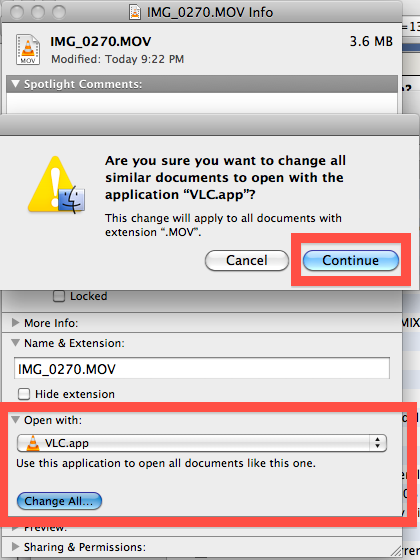
3. In the Info window, click the triangle next to "Open with:" to expand that section of the window.
4. From the pull-down menu that appears, select the application that will be used to open the file.
5. Click on 'Change All...'.
6. In the pop up dialog, click Continue.
7. Close the Info window by clicking the red button in top left corner.
Tips: Ensure that the selected application is appropriate for the type of file before applying to all files. Image files could be opened in an image viewer or editor, text documents require a text editor or word processor, and so on.